
NFS server [Network File System]
CentOS 7
NFS is Network File System & it was created to allow Linux/Unix devices to access files and folders.
It enables you to mount local file systems across a network and interact with them as if they were mounted locally on the same system.
NFS Advantages:
- NFS file sharing, a conventional client/server architecture is used.
- It is not required for both machines to use the same operating system while using NFS.
- NFS allows you to access remote files from your local computer.
- For new files, no manual refresh is required.
- Acl, pseudo root mounts are also supported by newer versions.
System Prerequisites:
Server Machine: Linuxsysad : IP: 192.168.0.186
Client machine: localhost : IP: 192.168.0.185
Operating system: CentOS 7
Working Internet Connection to download packages.
NFS Server Side Configuration:
Install nfs-utils.
# yum install -y nfs-utils
———————————————————————–
To Create sharable folder # mkdir /nfsdata
Change Group to nfsnobody # chgrp nfsnobody /nfsdata
Give Write access to group # chmod g+w /nfsdata

Next, on your NFS server, export suitable folders so that they may be accessed by NFS clients.
# vi /etc/exports <—–Edit File with vi editor or your favourite editor.
ADD BELOW LINES
/nfsdata 192.168.0.185(rw,sync,no_root_squash)
In above example,
/nfsdata : NFS Shared folder location.
192.168.0.185 : Client IP address. You can use hostname.
For all IP access, use “*” instead of IP.
(rw,sync,no_root_squash): Permission details.
ro : Read only access to shared directories and files.
rw : Read and write access to shared directory.
sync : Once the modifications have been committed, Sync verifies requests to the shared directory.
no_root_squash : Connect to the NFS-mounted remote directory as root.
root_squash: On remote NFS-mounted directory, prohibits remote root users from having superuser (root) rights.
Allow Firewall for NFS : Run below command one by one in terminal.
firewall-cmd –permanent –zone=public –add-service=nfs
firewall-cmd –permanent –zone=public –add-service=mountd
firewall-cmd –permanent –zone=public –add-service=rpc-bind
firewall-cmd –reload
Lets start NFS service and add at boot time start.
# systemctl start nfs-server.service <— Service starts
# systemctl enable nfs-server.service <- Add service to start at boot time
# exportfs -v : Displaying the current export list.
# exportfs -r : Re-export or update export list.

NFS Client Configuration :
Install nfs packages.
# yum install nfs-utils
Create Mount Point
# mkdir /mnt/nfs
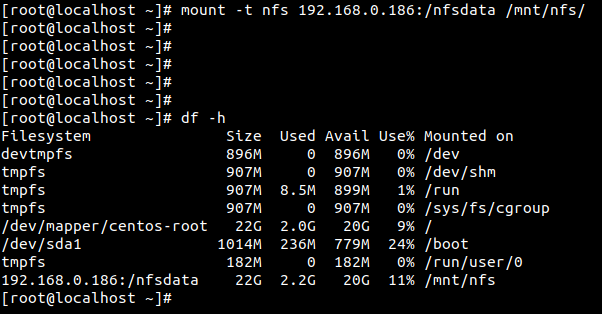
Mount NFS shared Directory and check mounted directory with df -h.
# mount -t nfs 192.168.0.186:/nfsdata /mnt/nfs/
 Linuxsysad