
Basic Idea :
Create folder for our project. /website
Create python virtual environment inside /website folder. env.
Activate python virtual environment.
Install django
Add MariaDB compatible lines inside setting.py. and we will add our database credentials.
Run migrate
Start project
Create Folder for our project. mysite under /website folder
# mkdir -p /website/mysite
Go to mysite Folder.
# cd /website/mysite
Create Python Virtual Environment with python version 3.8. Useing -p to target python version. env is our environment name.
# virtualenv -p /usr/local/bin/python3.8 env
Now our Virtual environment is ready.
Lets Activate Environment.
# source env/bin/activate NOTE: We already inside website folder.
Now install django through pip installer in virtual environment.
# pip install django
We can check installed apps and versions inside python environment through below command.
# pip list
Create first django project.
# django-admin startproject mysite
Now Edit mysite/settings.py file to change sqlit3 to mysql database.
Default sqlit3 lines as below.
DATABASES = {
‘default’: {
‘ENGINE’: ‘django.db.backends.sqlite3’,
‘NAME’: os.path.join(BASE_DIR, ‘db.sqlite3’),
}
}
Replace with below lines.
DATABASES = {
‘default’: {
‘ENGINE’: ‘django.db.backends.mysql’,
‘NAME’: ‘mysite‘,
‘USER’: ‘root‘,
‘PASSWORD’: ‘root123‘,
‘HOST’: ‘localhost’,
‘PORT’: ”,
}
}
As per above lines, we mention User as root, Password as root123, database as mysite.
Now Run Migrate Command.
# python manage.py migrate
Now start Django application.
# python manage.py runserver 192.168.0.185:8000 (We can add ip address. or localhost )
OR
# python manage.py runserver localhost:8000
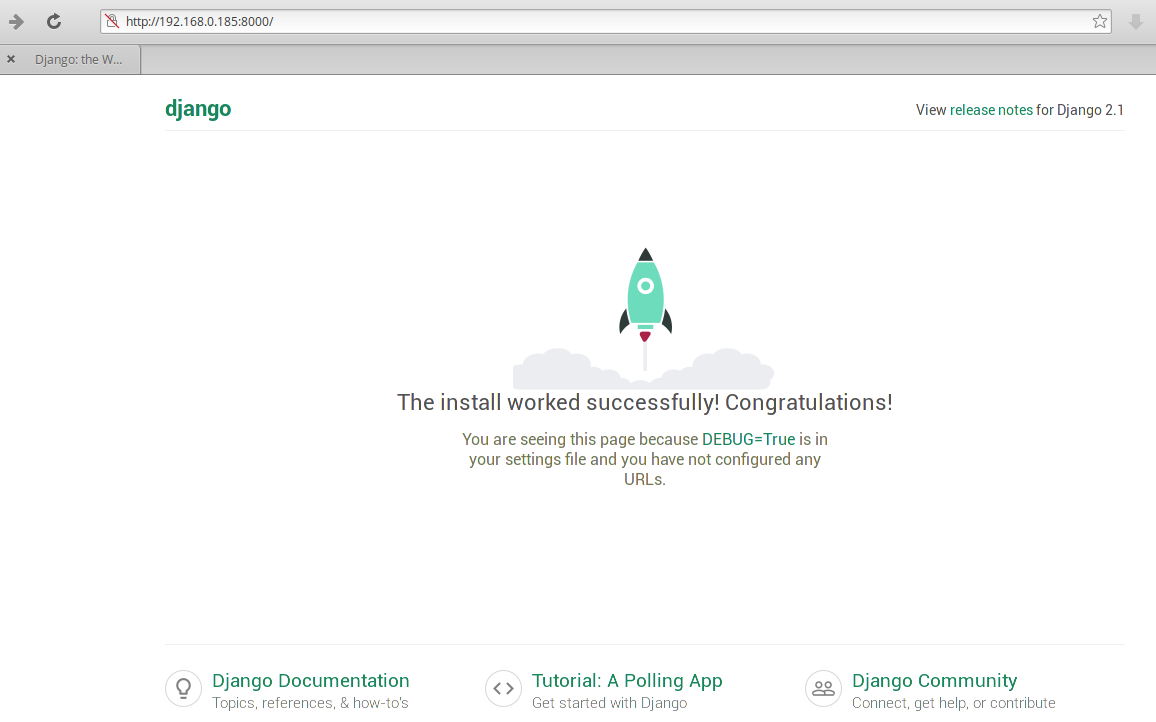
Now Open ipaddress or localhost with 8000 port number in any Browser.
 Linuxsysad